> ## Documentation Index
> Fetch the complete documentation index at: https://speckle-assistant.mintlify.site/llms.txt
> Use this file to discover all available pages before exploring further.
# Share your Models
> View your 3D Model anywhere
## Share Using a URL link
With Speckle, sharing your 3D models is as easy as copying a link or embedding an interactive viewer—no huge file
transfers required. Because Speckle is a web app, you can access and interact with your models from any device—desktop,
tablet, or phone—from anywhere with an internet connection. **No special software or licenses are required to view and
interact with models;** everything runs right in your browser.
Looking to create advanced analytics and dashboards from your model data? Check out [Speckle Intelligence Dashboards](/analytics/intelligence-dashboards) for interactive dashboards and insights.
You have two simple ways to share your Speckle model:
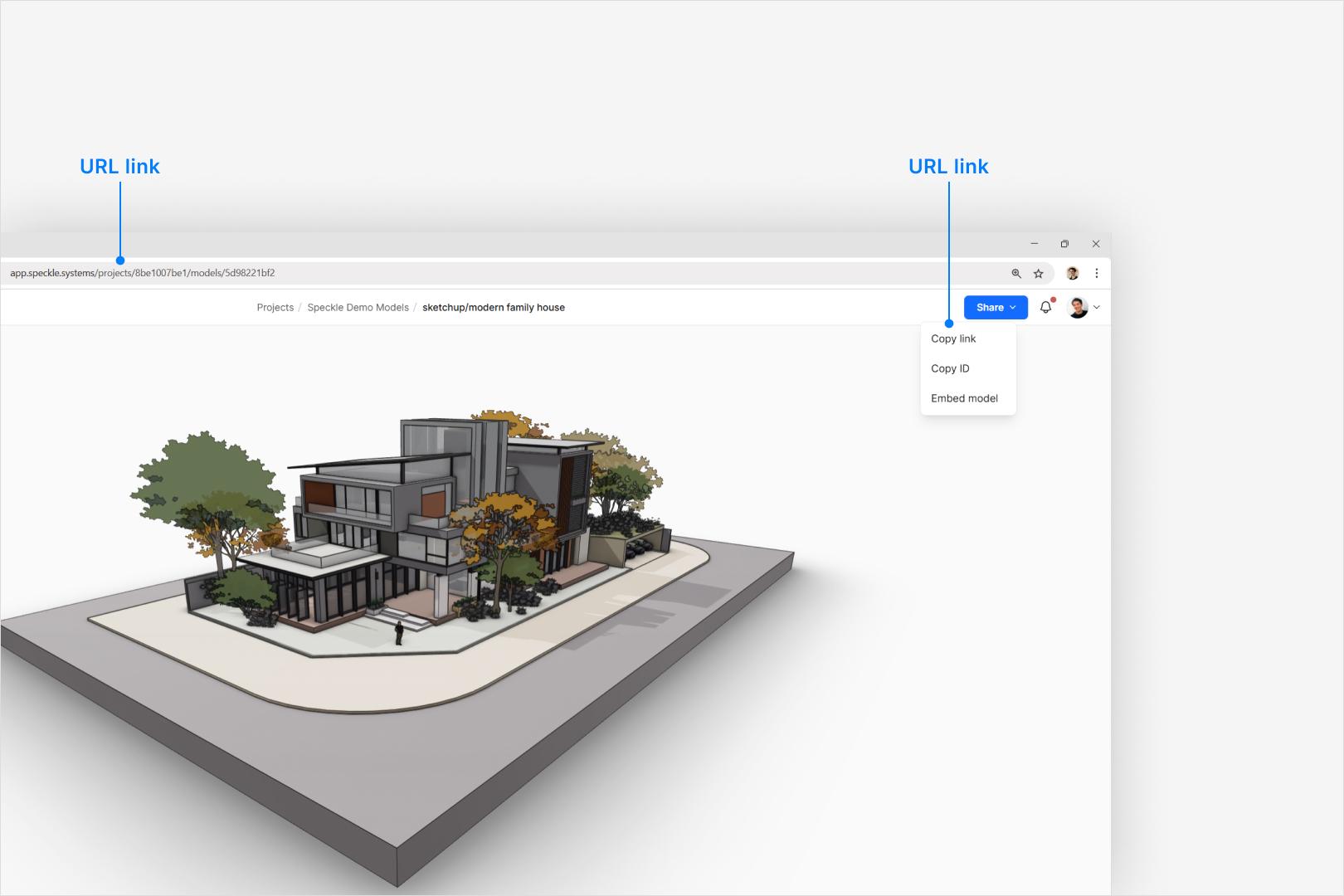
1. **Copy and paste the URL**\
Just grab the link from your browser's address bar and send it to anyone who needs access.
2. **Use the Share button**\
Click Share in the top-right corner, then select Copy link. Paste that link wherever you like.
 If someone can't open your link, check your project's permissions. You may need to give them access to your workspace or
project first. For details, see [Managing Access and Permissions](/workspaces/roles-and-seats) guide.
## Embed the 3D Viewer
If someone can't open your link, check your project's permissions. You may need to give them access to your workspace or
project first. For details, see [Managing Access and Permissions](/workspaces/roles-and-seats) guide.
## Embed the 3D Viewer
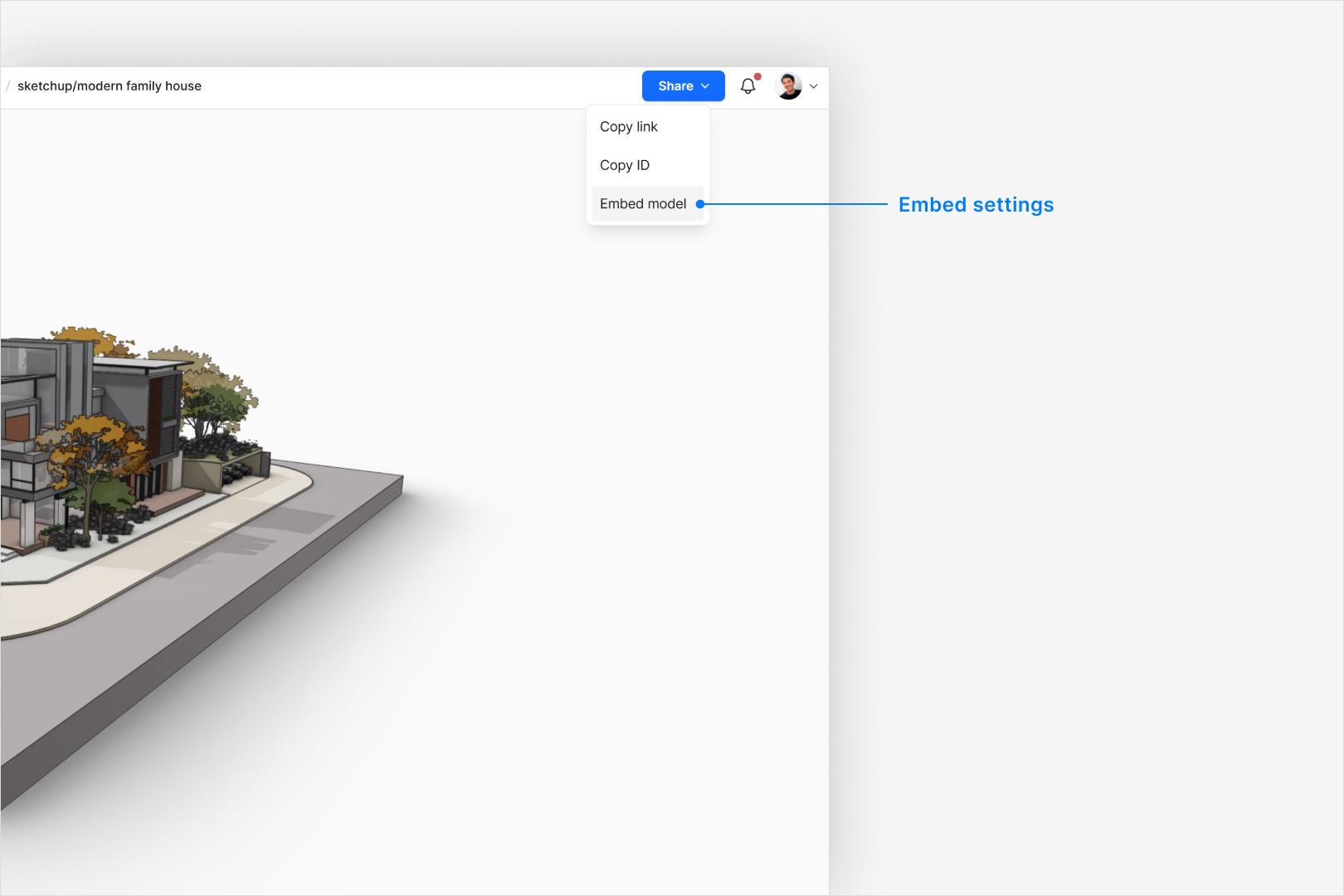 ### Options and settings
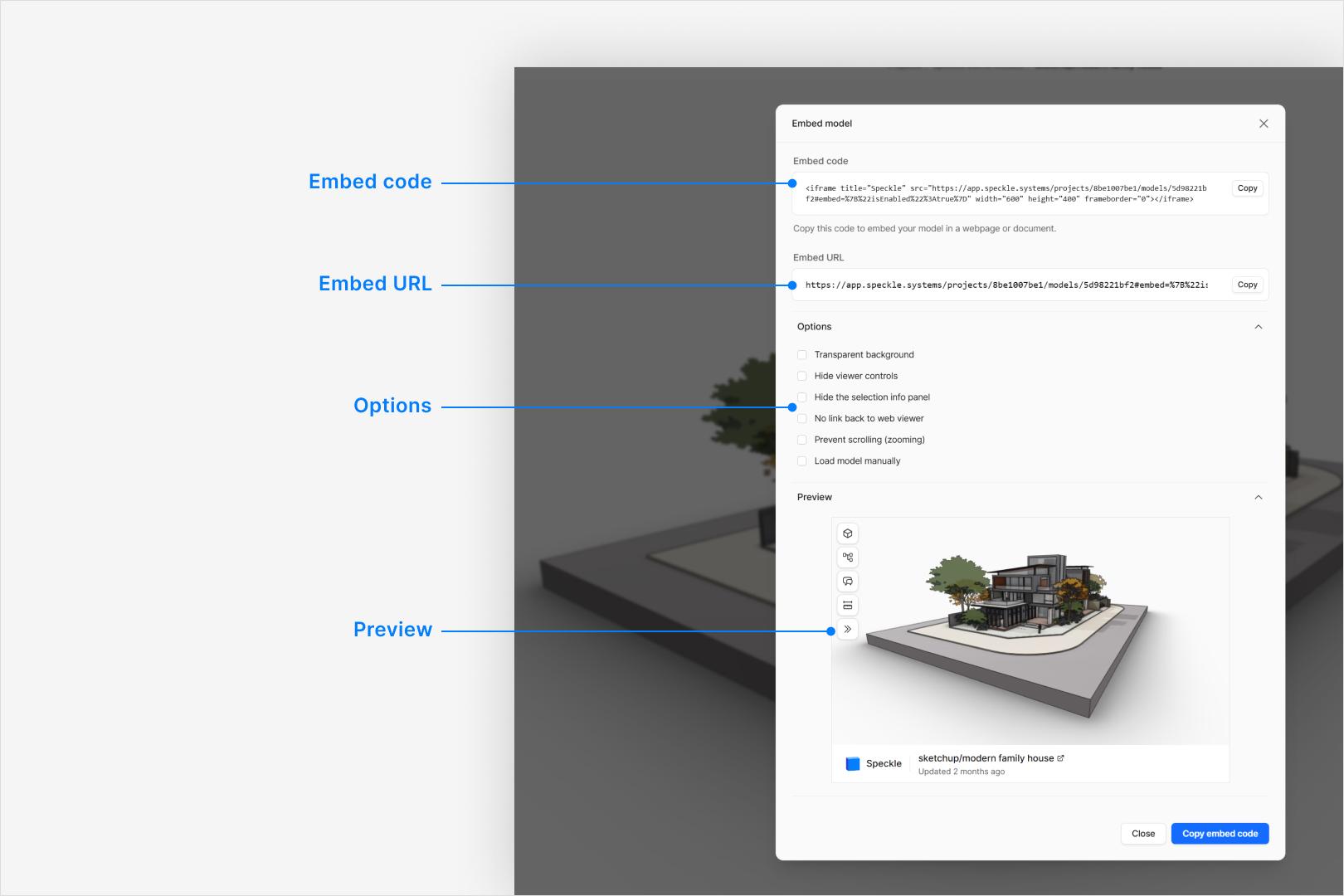
* **Embed code** (iframe)
* **Embed URL**
Use the direct viewer URL if you need a quick link to open the model in a new browser tab without embedding code.
* **Options and Preview**
Customize and toggle the following: Transparent background, Hide viewer controls, Hide the selection info panel, Prevent scrolling (zooming), Load model manually.
### Options and settings
* **Embed code** (iframe)
* **Embed URL**
Use the direct viewer URL if you need a quick link to open the model in a new browser tab without embedding code.
* **Options and Preview**
Customize and toggle the following: Transparent background, Hide viewer controls, Hide the selection info panel, Prevent scrolling (zooming), Load model manually.
 ## Examples
### Speckle in Miro
## Examples
### Speckle in Miro
### Speckle in Notion