> ## Documentation Index
> Fetch the complete documentation index at: https://speckle-assistant.mintlify.site/llms.txt
> Use this file to discover all available pages before exploring further.
# Model Checker
> Validate your models against custom rules and track quality metrics with automated model checking.
Model Checker is a premade automation that validates your Speckle models against custom rules, ensuring they meet specific project requirements. It focuses on data properties and quality checks, helping you maintain consistency and catch issues early in your workflow.
## What is Model Checker?
Model Checker automatically validates model data against rules you define. Unlike geometry-based clash detection, Model Checker focuses on:
* **Property validation** - Check if properties exist, have values, or match patterns
* **Data quality** - Ensure data meets project standards and requirements
* **Automated testing** - Run checks automatically when models are published
* **View results** - See validation results in the 3D viewer
## Model Checker vs. Property Checker
There are two ways to validate models in Speckle:
The Model Checker UI at [model-checker.speckle.systems](https://model-checker.speckle.systems) is designed for creating validation rules that work with automations:
* Create and manage validation rules
* Use rules with automations for automatic validation
* View results in the 3D viewer
* View results in the connector interface in desktop applications (Revit, Rhino, etc.)
**When to use:** Use Model Checker when you need to create rules that work with automations or want to manage rules separately.
The **Property Checker** in Intelligence dashboards provides quick validation checks directly within your dashboard:
* Create validation rules directly in the dashboard widget
* View results in a donut chart with pass/fail percentages
* Colorize the 3D viewer based on validation results
* Quick setup for immediate visual feedback
**When to use:** Use Property Checker for quick validation checks within a dashboard.
Both use the same rule structure, so rules created in one can be adapted for the other.
**Future Migration**: Model Checker will be migrating into Dashboards, but will remain compatible with all rulesets already created. Your existing rulesets will continue to work without any changes.
## Prerequisites
* A Speckle project with a model
## Getting Started
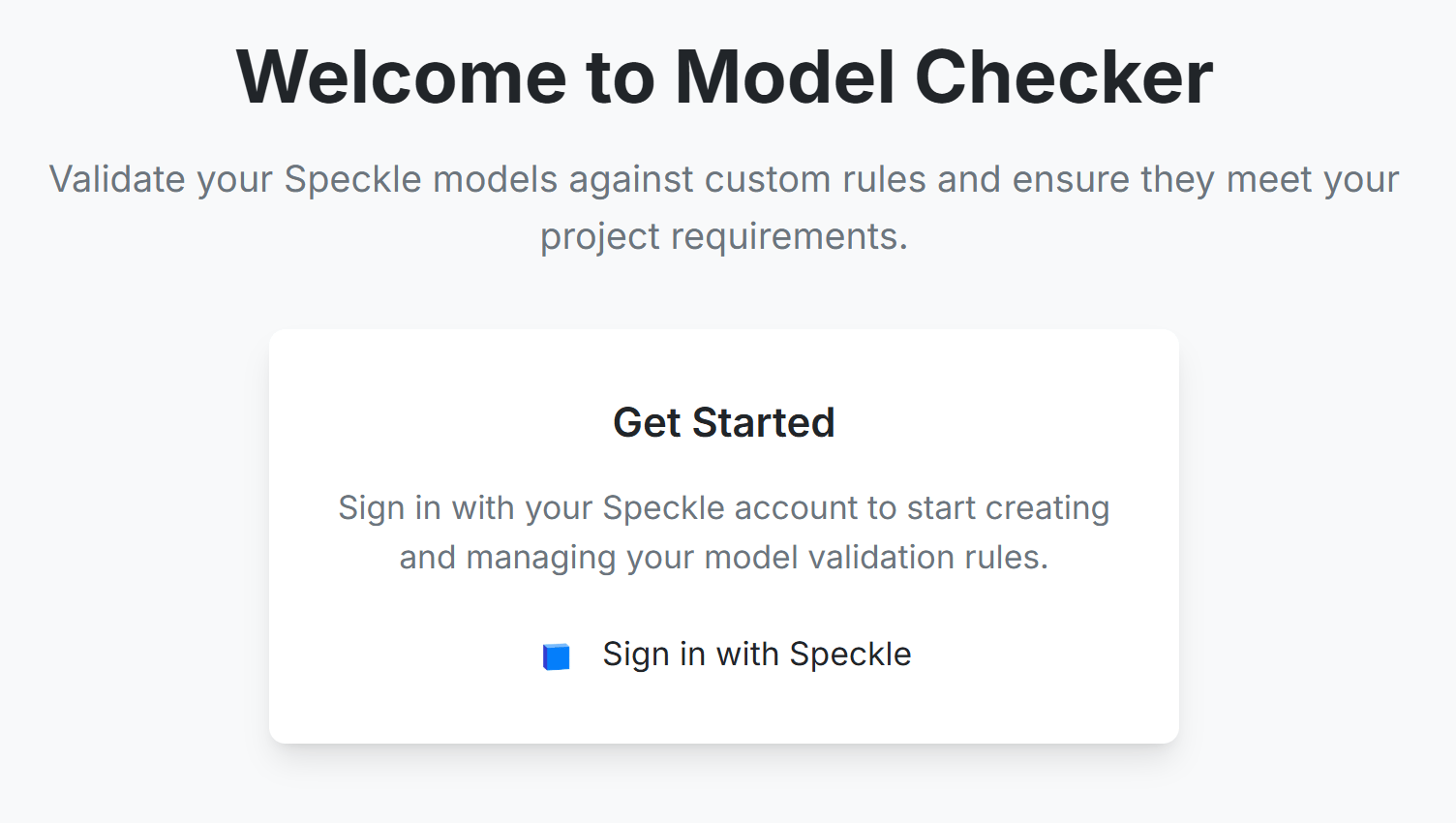
Navigate to [Model Checker](https://model-checker.speckle.systems) and sign in with your Speckle account.
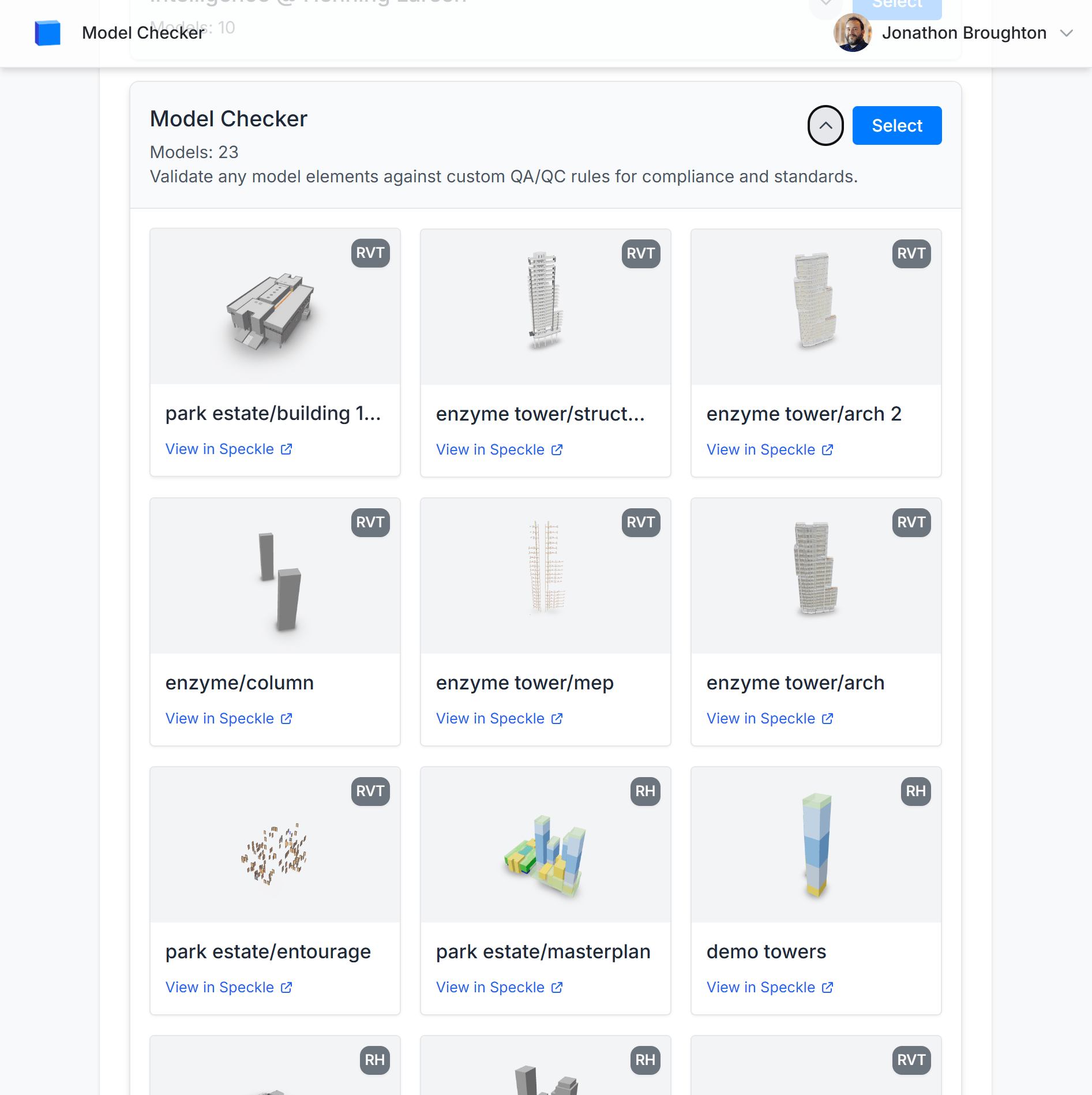
 Browse your Speckle projects and select the project you want to create validation rules for.
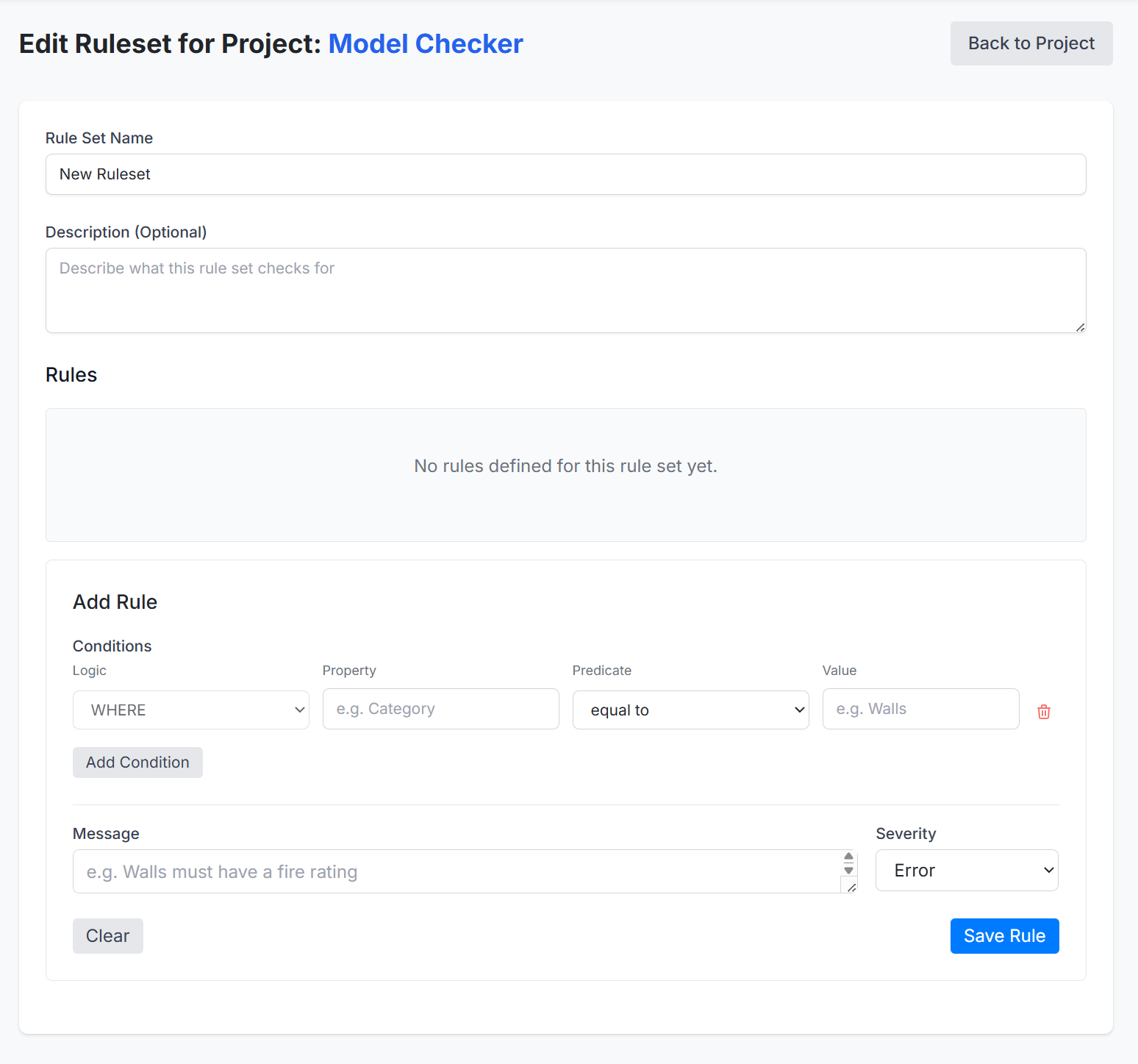
 Click **Create New Ruleset** to start defining validation rules for your project. Give your ruleset a name and description.
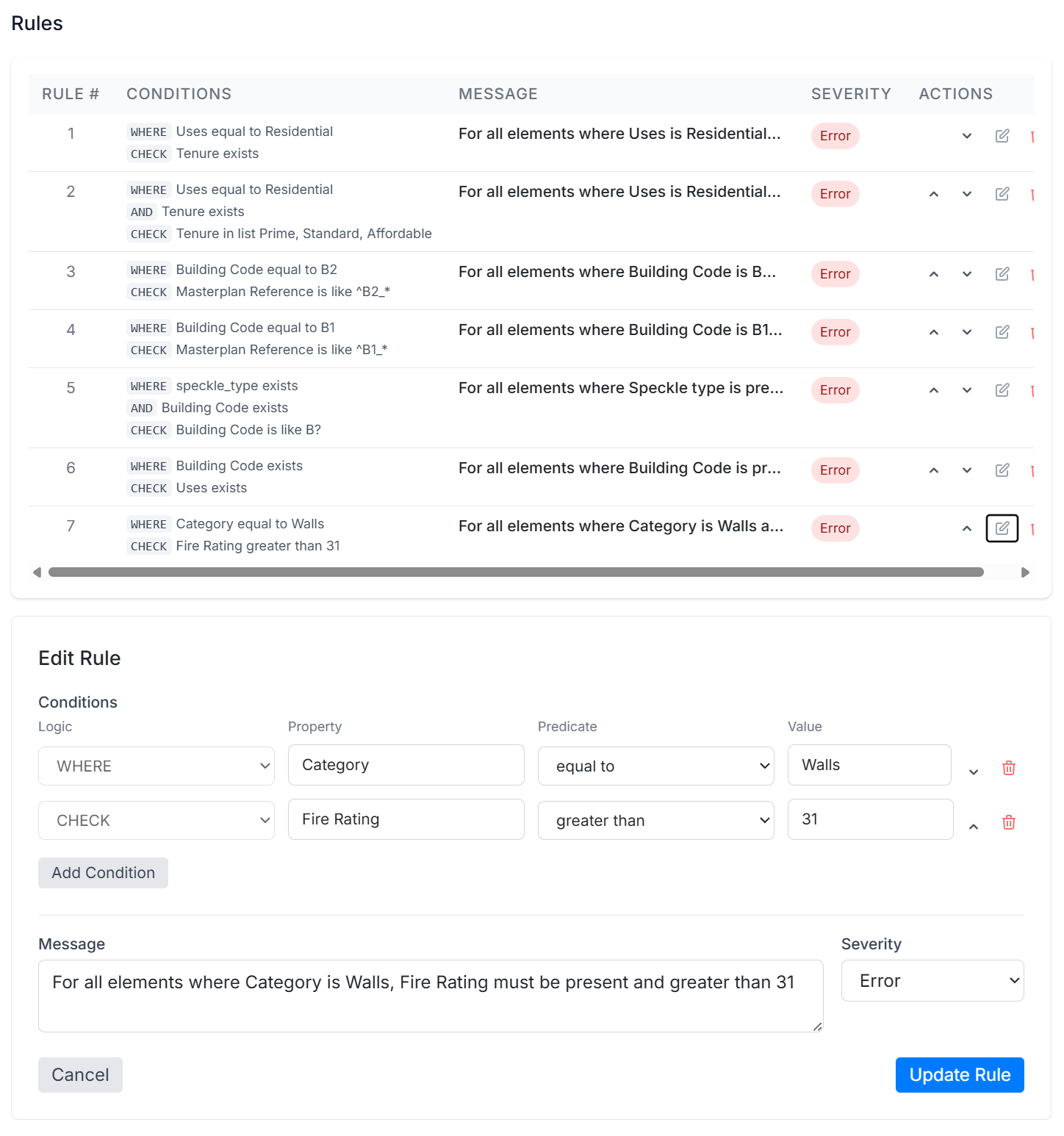
 Add rules to your ruleset. Each rule consists of conditions that filter and validate model elements. See the [Rules and Rulesets](/analytics/model-checker/rules-and-rulesets) guide for details.
 Once your rules are defined, click **Copy Link** to get the URL for your ruleset. This URL can be used in Speckle Automate to connect your rules to the Model Checker automation.

 In your Speckle project, navigate to the **Automations** tab and create a new automation:
1. **Select the Model Checker function** from the function library and click **Next**.
2. **Configure the ruleset URL**: In the function parameters, paste the ruleset URL you copied from Model Checker. This connects your validation rules to the automation.
3. **Choose a Speckle Model**: Select the model from the current project that will trigger the automation. The automation will run automatically whenever a new version of this model is published.
4. **Name your automation**: Provide a meaningful name for reference (e.g., "Building Code Compliance Check").
5. **Create the automation**: Click **Create** to finalize the setup.
In your Speckle project, navigate to the **Automations** tab and create a new automation:
1. **Select the Model Checker function** from the function library and click **Next**.
2. **Configure the ruleset URL**: In the function parameters, paste the ruleset URL you copied from Model Checker. This connects your validation rules to the automation.
3. **Choose a Speckle Model**: Select the model from the current project that will trigger the automation. The automation will run automatically whenever a new version of this model is published.
4. **Name your automation**: Provide a meaningful name for reference (e.g., "Building Code Compliance Check").
5. **Create the automation**: Click **Create** to finalize the setup.
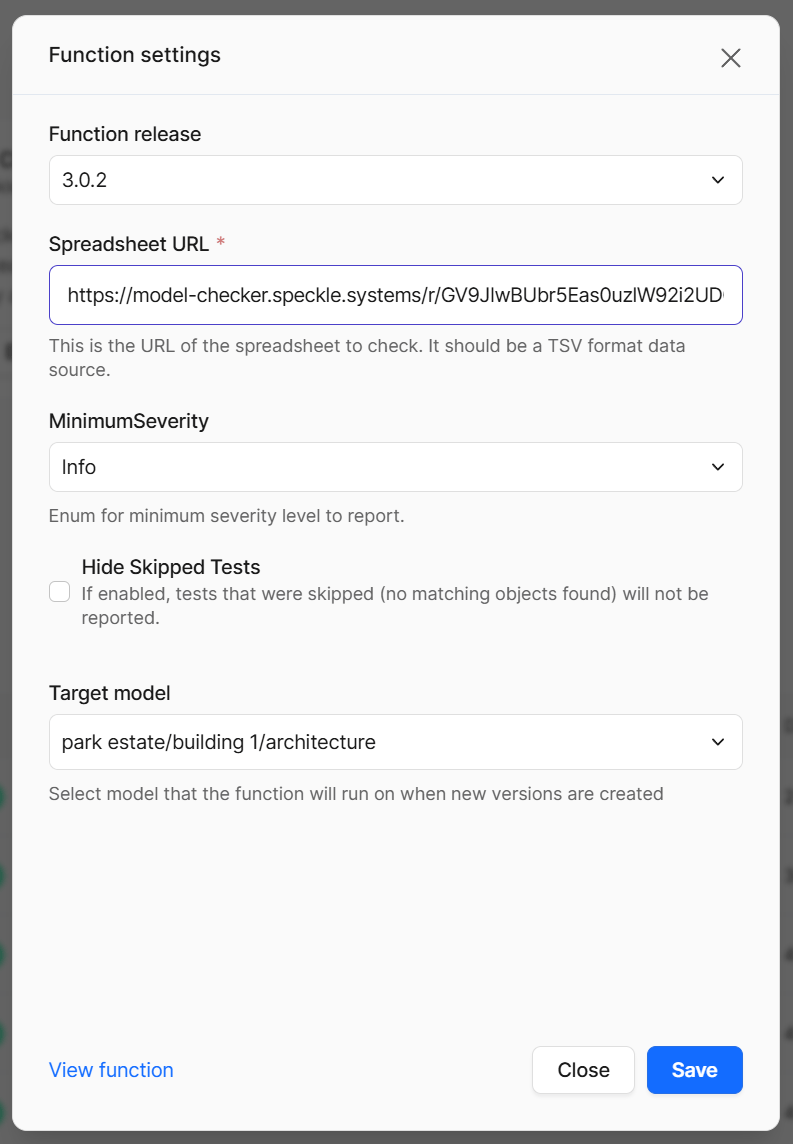 The automation will automatically run whenever a new version of the selected model is published. You don't need to manually trigger it.
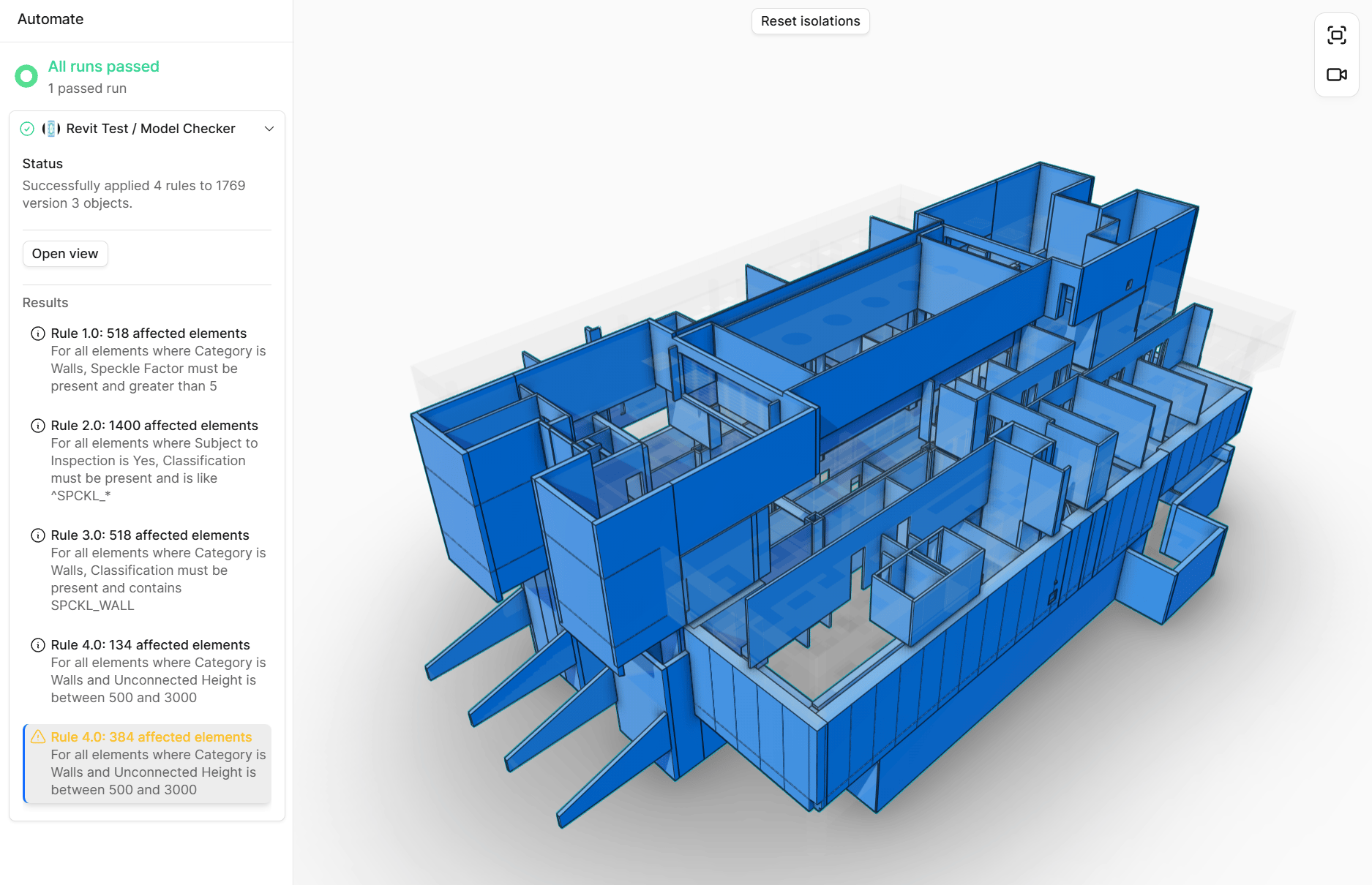
When models are published, Model Checker automatically runs. Check results in Speckle's 3D viewer, where elements with warnings or errors are flagged.
The automation will automatically run whenever a new version of the selected model is published. You don't need to manually trigger it.
When models are published, Model Checker automatically runs. Check results in Speckle's 3D viewer, where elements with warnings or errors are flagged.
 ## Key Concepts
### Rulesets
A **ruleset** is a collection of validation rules for a specific project. You can create multiple rulesets for different validation purposes (e.g., one for building code compliance, another for naming conventions).
Rulesets can be exported and imported as TSV files, making it easy to share validation rules between projects or teams.
### Rules
Each **rule** consists of one or more **conditions** that work together to validate model elements. Rules use a structured logic system with `WHERE`, `AND`, and `CHECK` conditions.
### Conditions
**Conditions** define what to check:
* **Logic**: How conditions combine (`WHERE` to filter, `AND` to refine, `CHECK` to validate)
* **Property Name**: The object property to check
* **Predicate**: The comparison operation (equal to, greater than, exists, etc.)
* **Value**: The reference value for comparison
* **Severity**: `ERROR`, `WARNING`, or `INFO`
* **Message**: Description shown in validation results (auto-generated to help validate the logic, but can be overwritten)
You can create rules that check for property existence, pattern matching, numeric comparisons, and value validation. Rules are defined using the Model Checker interface at [model-checker.speckle.systems](https://model-checker.speckle.systems).
No, Model Checker runs automatically as an automation when you publish models to Speckle. Once set up, it will check every new version against your rules.
Elements that fail validation rules are flagged in the 3D viewer with warnings or errors. You can see which rules failed and the associated messages.
Yes, Model Checker can add tests for properties. The results of these tests can then be used as filters in the 3D viewer, even if the property doesn't exist in the original model.
Yes, you can create multiple rulesets for a single project. This is useful for organizing different types of validation checks (e.g., building code compliance, naming conventions, material standards).
Rule messages are auto-generated to help validate the logic you are testing for, but they can be overwritten with custom messages. This helps ensure your validation messages are clear and actionable.
Yes, rulesets can be exported and imported as TSV files. This makes it easy to share validation rules between projects or teams, or to back up your rules.
At this time, there isn't anything particularly special about selecting a particular Speckle project. We're considering making use of project data when defining rules in future updates.
## Roadmap
We are working on a Model Checker experience in Speckle Intelligence for the management of Validation at scale that will support the importing of IDS and COBie for the definition of Rulesets.
## Next Steps
* Learn about [creating rules and using rulesets](/analytics/model-checker/rules-and-rulesets)
* See how to [view results](/analytics/model-checker/viewing-results)
## Getting Help
For questions about Model Checker, visit the [Speckle Community](https://speckle.community/) or check out the [Automate documentation](/developers/automate/introduction) for more information about setting up automations.
## Key Concepts
### Rulesets
A **ruleset** is a collection of validation rules for a specific project. You can create multiple rulesets for different validation purposes (e.g., one for building code compliance, another for naming conventions).
Rulesets can be exported and imported as TSV files, making it easy to share validation rules between projects or teams.
### Rules
Each **rule** consists of one or more **conditions** that work together to validate model elements. Rules use a structured logic system with `WHERE`, `AND`, and `CHECK` conditions.
### Conditions
**Conditions** define what to check:
* **Logic**: How conditions combine (`WHERE` to filter, `AND` to refine, `CHECK` to validate)
* **Property Name**: The object property to check
* **Predicate**: The comparison operation (equal to, greater than, exists, etc.)
* **Value**: The reference value for comparison
* **Severity**: `ERROR`, `WARNING`, or `INFO`
* **Message**: Description shown in validation results (auto-generated to help validate the logic, but can be overwritten)
You can create rules that check for property existence, pattern matching, numeric comparisons, and value validation. Rules are defined using the Model Checker interface at [model-checker.speckle.systems](https://model-checker.speckle.systems).
No, Model Checker runs automatically as an automation when you publish models to Speckle. Once set up, it will check every new version against your rules.
Elements that fail validation rules are flagged in the 3D viewer with warnings or errors. You can see which rules failed and the associated messages.
Yes, Model Checker can add tests for properties. The results of these tests can then be used as filters in the 3D viewer, even if the property doesn't exist in the original model.
Yes, you can create multiple rulesets for a single project. This is useful for organizing different types of validation checks (e.g., building code compliance, naming conventions, material standards).
Rule messages are auto-generated to help validate the logic you are testing for, but they can be overwritten with custom messages. This helps ensure your validation messages are clear and actionable.
Yes, rulesets can be exported and imported as TSV files. This makes it easy to share validation rules between projects or teams, or to back up your rules.
At this time, there isn't anything particularly special about selecting a particular Speckle project. We're considering making use of project data when defining rules in future updates.
## Roadmap
We are working on a Model Checker experience in Speckle Intelligence for the management of Validation at scale that will support the importing of IDS and COBie for the definition of Rulesets.
## Next Steps
* Learn about [creating rules and using rulesets](/analytics/model-checker/rules-and-rulesets)
* See how to [view results](/analytics/model-checker/viewing-results)
## Getting Help
For questions about Model Checker, visit the [Speckle Community](https://speckle.community/) or check out the [Automate documentation](/developers/automate/introduction) for more information about setting up automations.