> ## Documentation Index
> Fetch the complete documentation index at: https://speckle-assistant.mintlify.site/llms.txt
> Use this file to discover all available pages before exploring further.
# Autodesk Construction Cloud
> Connect and sync your Autodesk Construction Cloud models with Speckle for analytics, dashboards, and automation workflows.
The Autodesk Construction Cloud integration is available only on **Enterprise** workspaces.\
To enable it for your organisation, get a quote.
## Setup
You’ll need **Account Admin** access to add the Speckle Integration to ACC.
1. Go to your Account Admin page at [acc.autodesk.com](http://acc.autodesk.com/) or [acc.autodesk.eu](http://acc.autodesk.eu/)
2. Select **Custom Integrations** under the Account Admin panel
3. Select **Add custom integrations**
4. Enter the integration details:
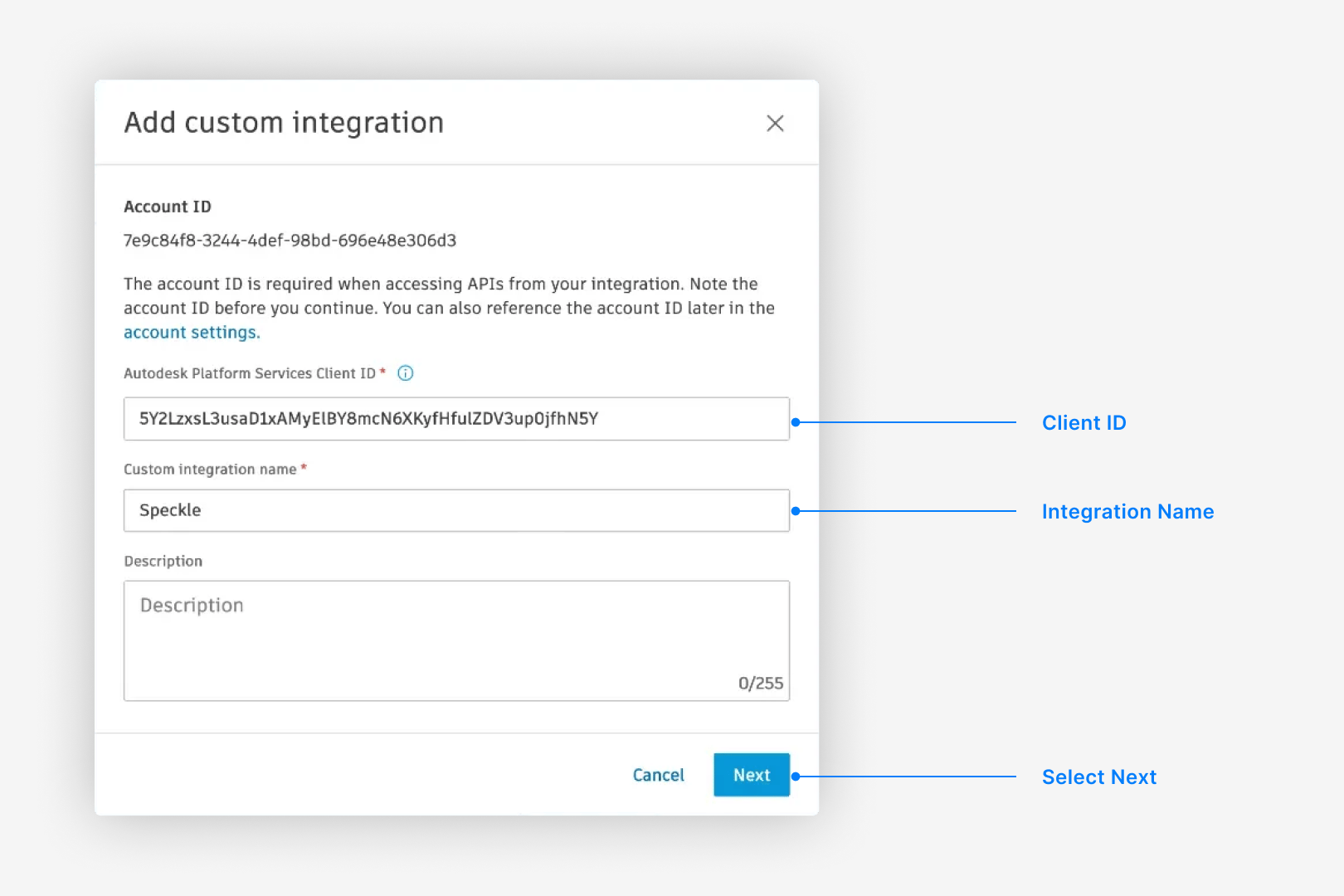 * **Client ID**: `5Y2LzxsL3usaD1xAMyElBY8mcN6XKyfHfulZDV3up0jfhN5Y`
* **Name**: `Speckle`
5. Select **Next**.
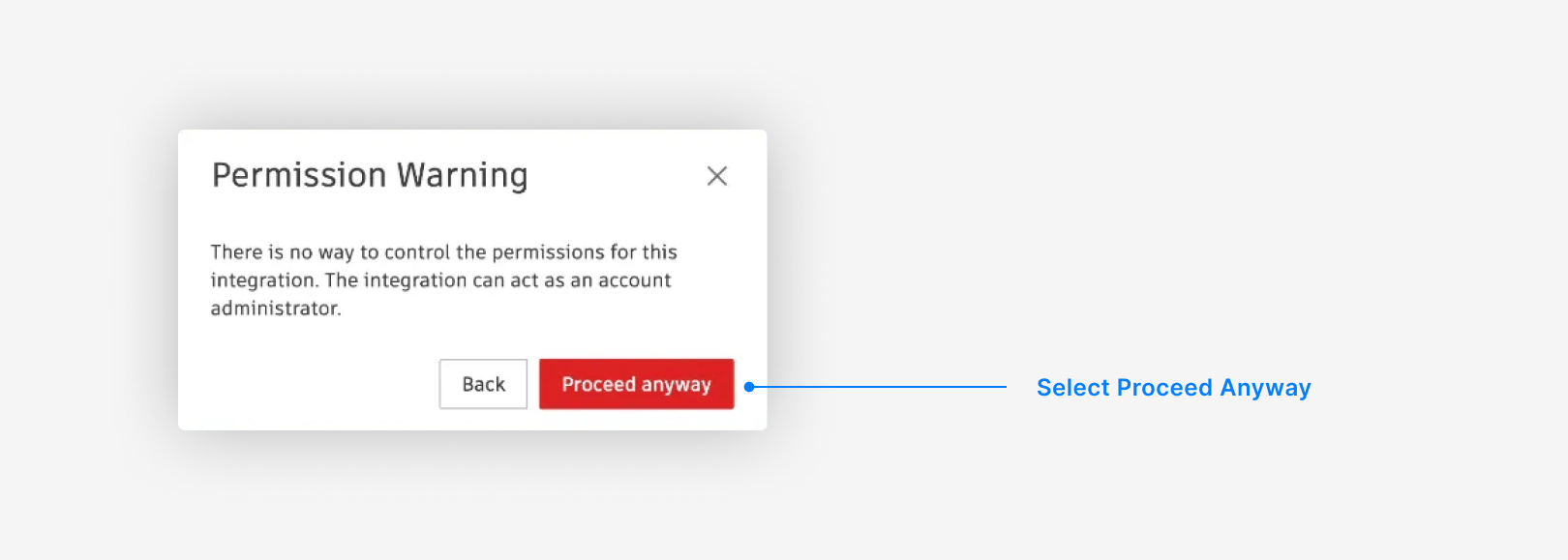
6. Select **Proceed Anyway** from the permission warning.
* **Client ID**: `5Y2LzxsL3usaD1xAMyElBY8mcN6XKyfHfulZDV3up0jfhN5Y`
* **Name**: `Speckle`
5. Select **Next**.
6. Select **Proceed Anyway** from the permission warning.
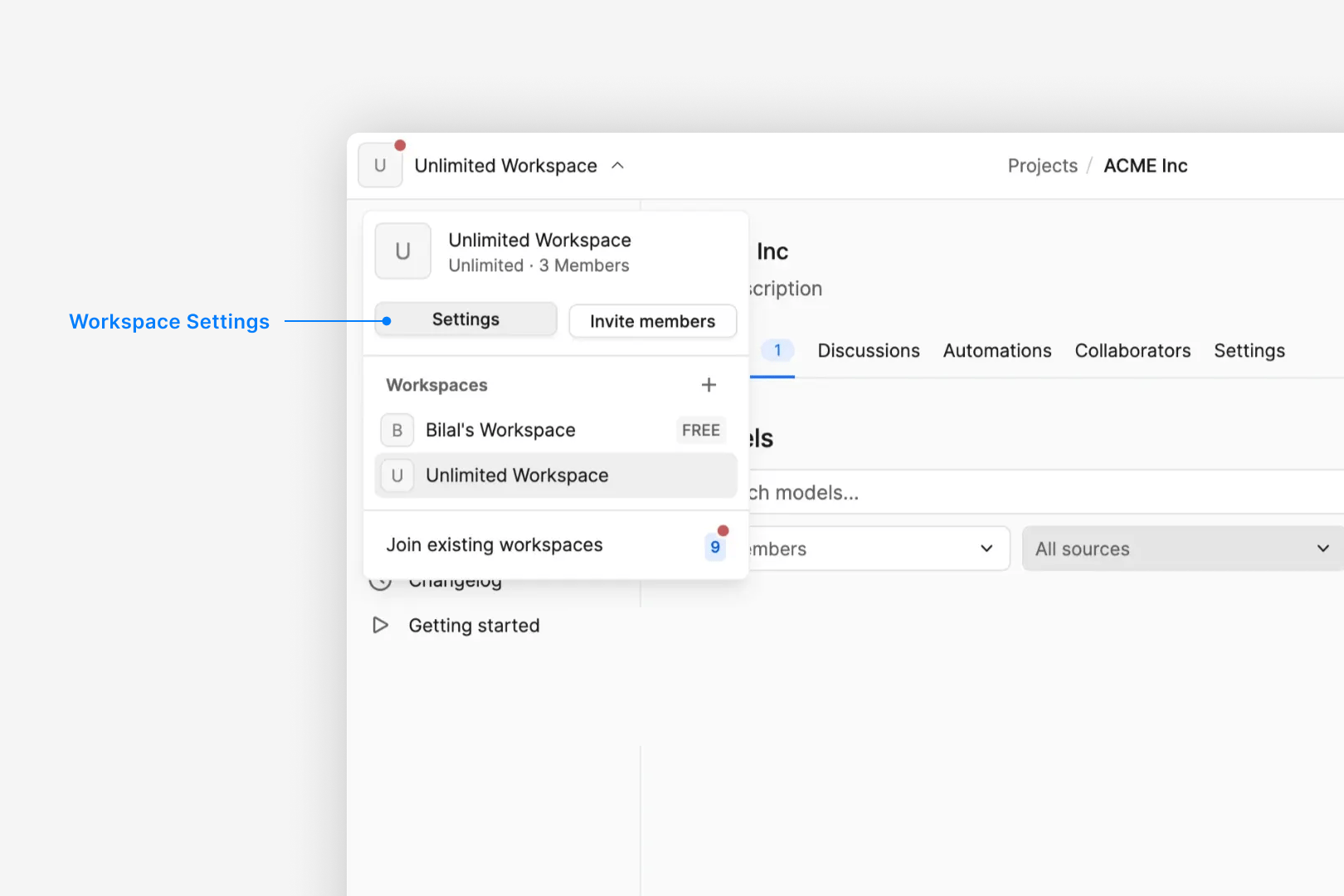
 1. Select **workspace settings** from the workspace dropdown (top left).
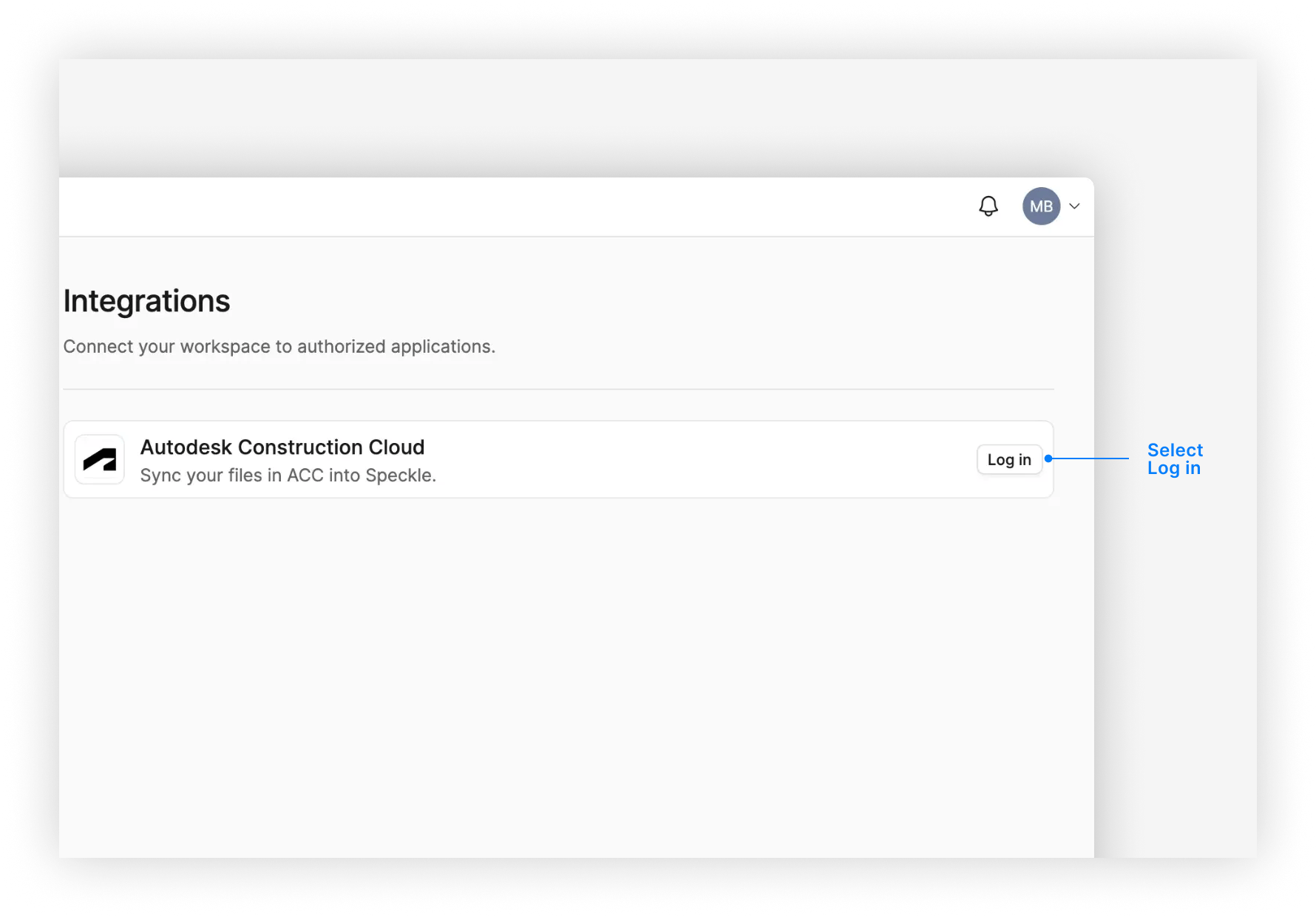
 2. Select **Log in** next to Autodesk Construction Cloud.
 3. Sign in to your ACC account and select **Allow** from the authorization dialog.
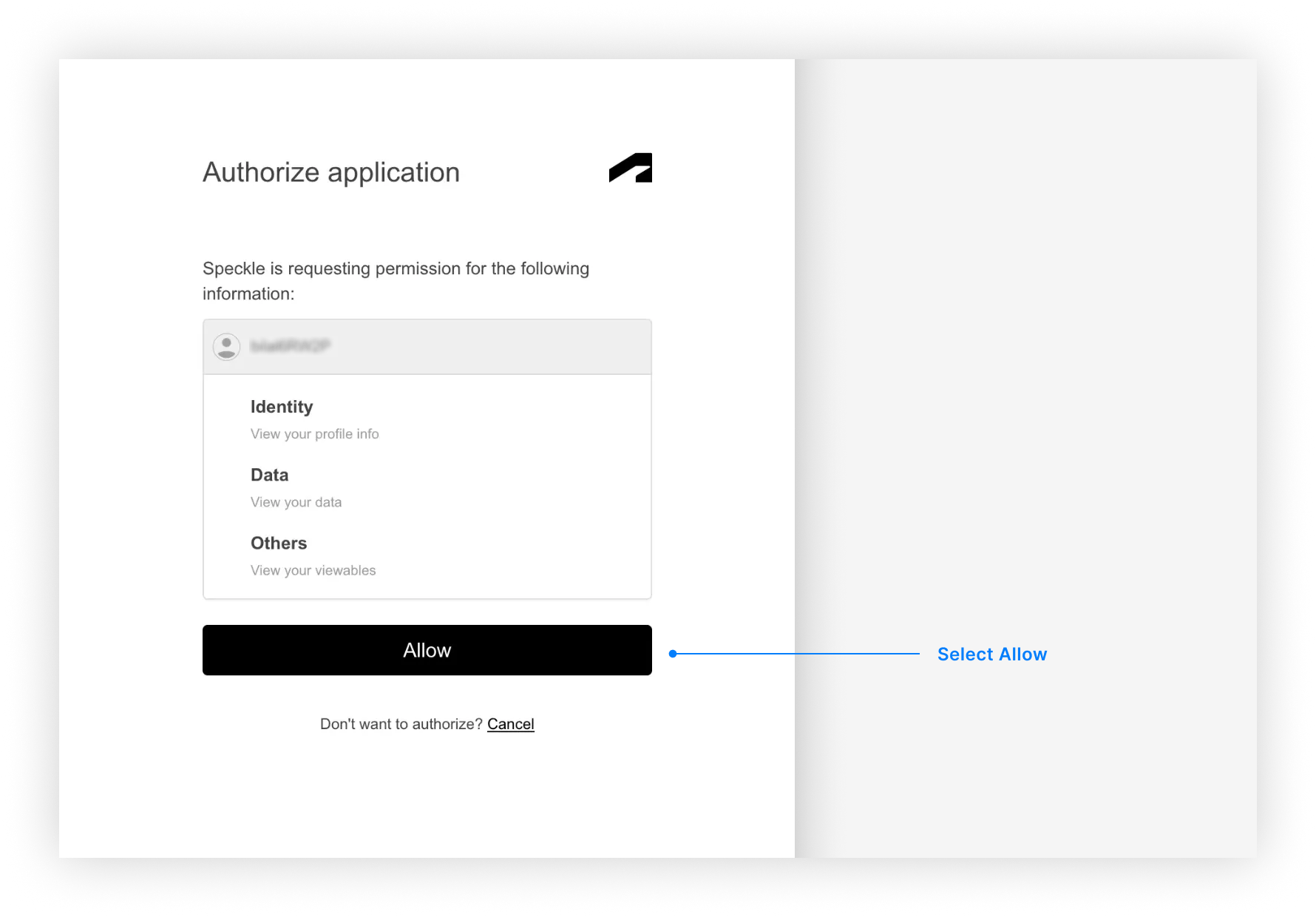 Your integration is now set up.
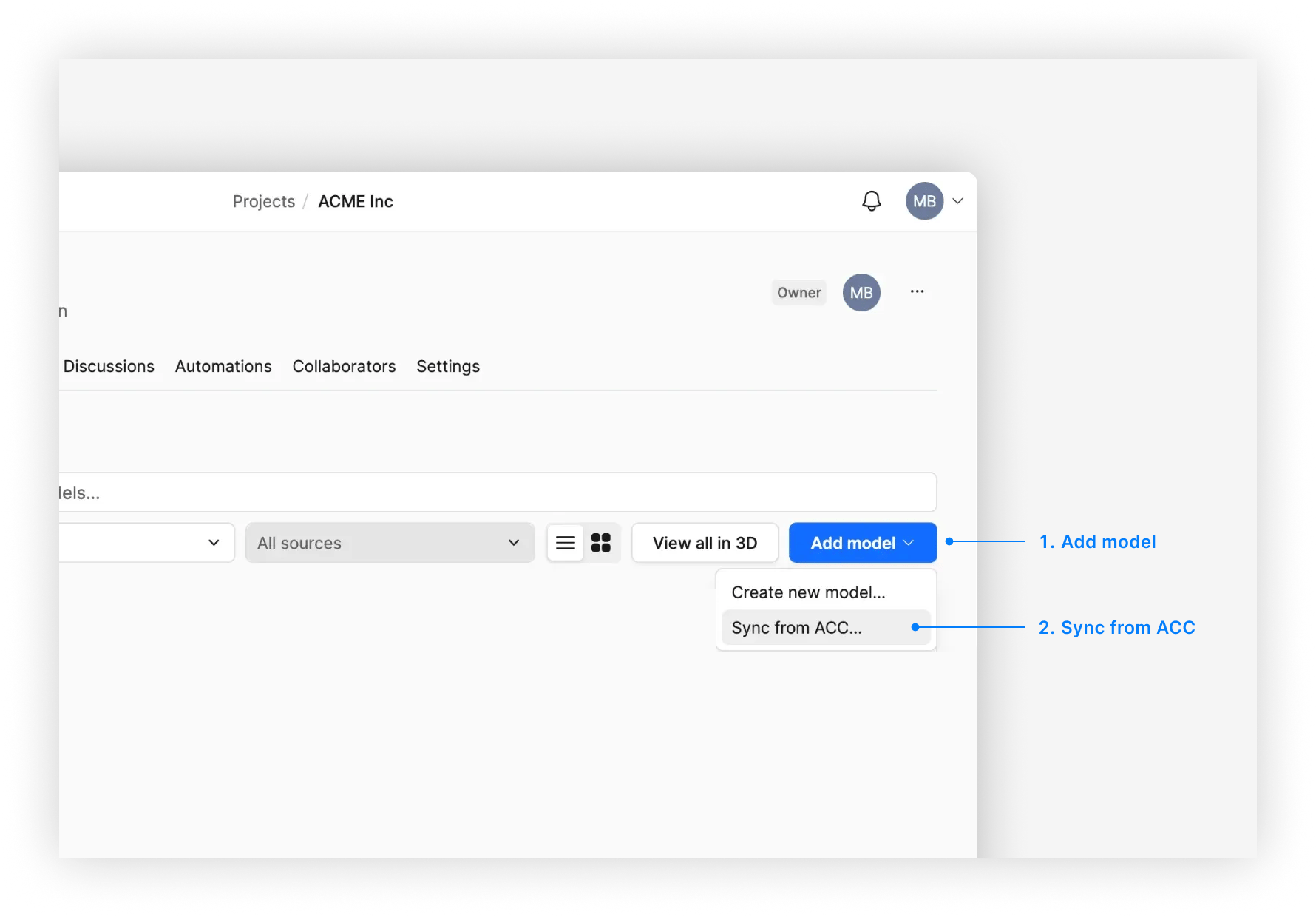
1. From your project in Speckle, select **Add model > Sync from ACC**.
Your integration is now set up.
1. From your project in Speckle, select **Add model > Sync from ACC**.
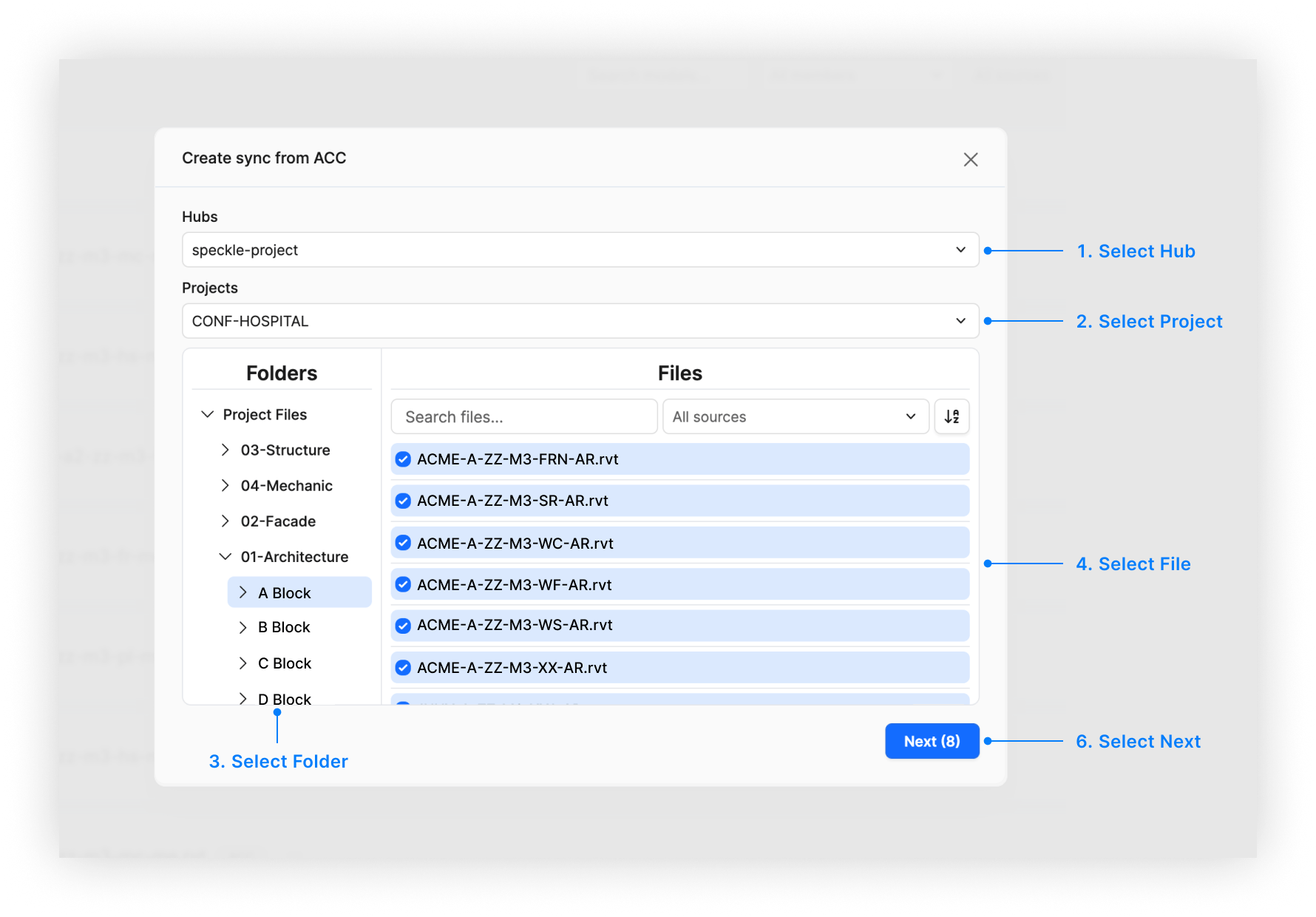
 2. Select the file you want to sync. Your hubs, projects, folders and files from ACC will be listed here.
 3. *Optionally*, define the view to export. See [View Selection](#view-selection) below for details on how this affects what gets synced.
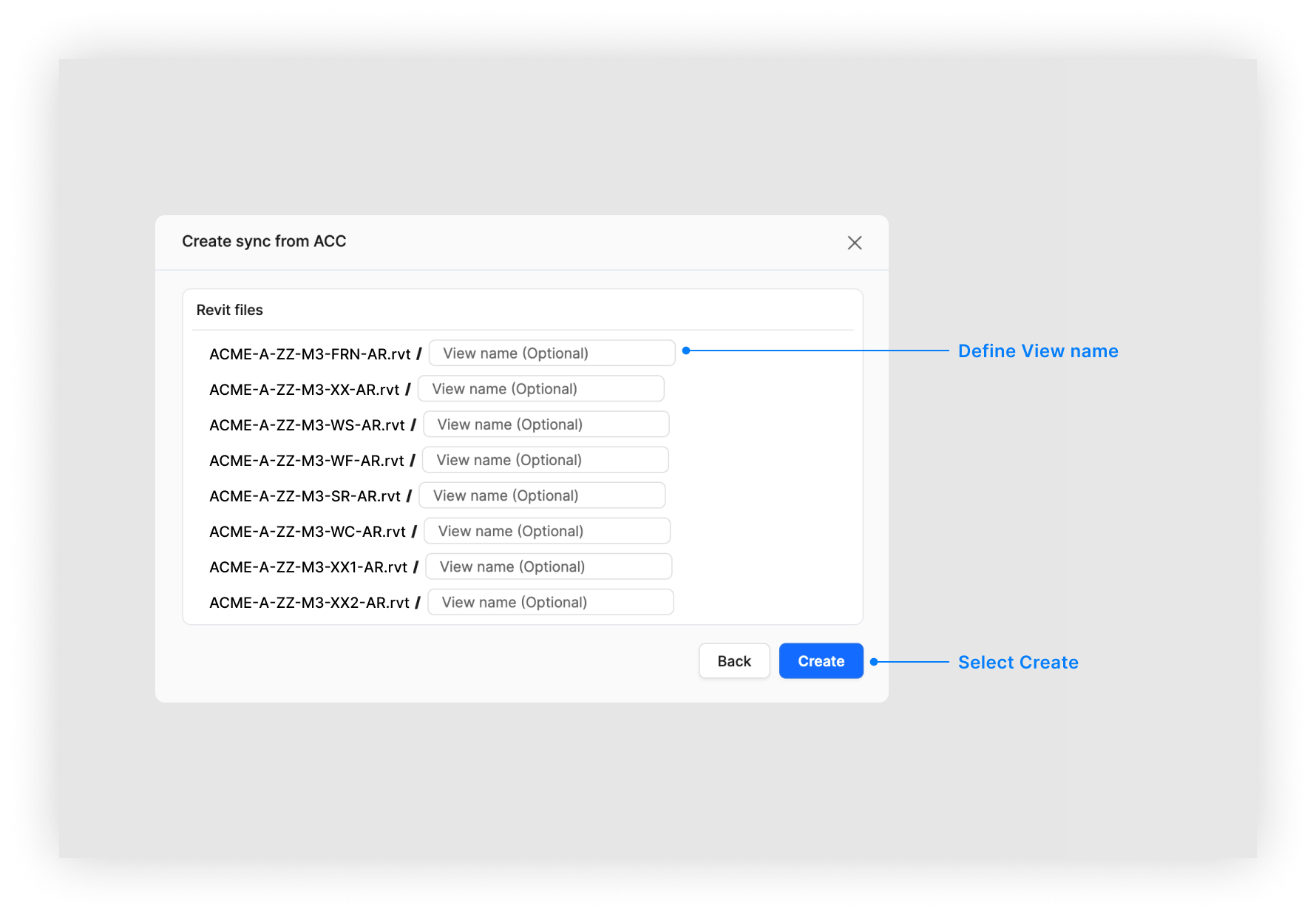 4. Select **Create**.
This connects your ACC file to your Speckle model. Changes in ACC sync automatically to Speckle.
## Supported File Formats
The following file formats are currently supported for syncing from Autodesk Construction Cloud:
| Format | Extension | Status |
| ------ | --------- | ----------- |
| Revit | `.rvt` | ✅ Supported |
| IFC | `.ifc` | ✅ Supported |
We're planning to add support for additional formats like `.dwg` and `.nwd` (Navisworks) in future releases.
## View Selection
When syncing a Revit file from ACC, you can optionally specify a view name to control which elements are included in the sync.
### No view specified (default)
When you don't specify a view name, **all supported elements from the entire model are synced**. This includes every element across all model.
This is the recommended option when you want:
* A complete representation of your model
* Access to all elements for analytics and dashboards
* Maximum data availability for downstream workflows
### Specifying a view name
When you enter a specific view name, **only elements visible in that view are synced**. The view name must match exactly (case-sensitive) with a view in your Revit model.
This is useful when you want to:
* Sync only a portion of your model
* Focus on specific areas or disciplines
* Match the scope of a particular coordination view
* Sync views that correspond to different design options
If the specified view name doesn't exist in the model, the sync will fail. Make sure the view name matches exactly.
Yes. Speckle establishes a read-only connection with Autodesk Construction Cloud, which means we can sync and analyze your data but can't modify the original files. This ensures data integrity and security.
Once you've created a sync model, it automatically syncs whenever a new version of the file is published to Autodesk Construction Cloud. You don't need to manually trigger ongoing synchronization.
Common causes include file access issues, authorization problems, or unsupported file formats. Check that:
* The file is accessible
* Your permissions are correct
* The file is in **.rvt** or **.ifc** format
Contact support if issues persist.
Contact us at [hello@speckle.systems](mailto:hello@speckle.systems) to request access.
The ACC integration provides direct integration with Autodesk Construction Cloud and enables automatic synchronization of construction data. Unlike other integrations that require manual file uploads or connectors, ACC syncs happen automatically when files are updated in the cloud.
Yes. Once synced, your Autodesk Construction Cloud models can be used with Speckle Intelligence for analytics, dashboard creation, and generating insights from your construction data.
## Roadmap
| Feature | Status |
| ---------------------------------------- | -------------- |
| ACC account connection and authorization | ✅ Complete |
| Revit (`.rvt`) file synchronization | ✅ Complete |
| IFC (`.ifc`) file synchronization | ✅ Complete |
| Automatic sync on file updates | ✅ Complete |
| Basic sync status monitoring | ✅ Complete |
| Enhanced UI/UX for sync management | ✅ Complete |
| Advanced sync configuration options | 🔄 In Progress |
| Improved error handling and reporting | 🔄 In Progress |
## Getting Help
For questions or to request access, contact our support team or visit the [Speckle Community](https://speckle.community/).
4. Select **Create**.
This connects your ACC file to your Speckle model. Changes in ACC sync automatically to Speckle.
## Supported File Formats
The following file formats are currently supported for syncing from Autodesk Construction Cloud:
| Format | Extension | Status |
| ------ | --------- | ----------- |
| Revit | `.rvt` | ✅ Supported |
| IFC | `.ifc` | ✅ Supported |
We're planning to add support for additional formats like `.dwg` and `.nwd` (Navisworks) in future releases.
## View Selection
When syncing a Revit file from ACC, you can optionally specify a view name to control which elements are included in the sync.
### No view specified (default)
When you don't specify a view name, **all supported elements from the entire model are synced**. This includes every element across all model.
This is the recommended option when you want:
* A complete representation of your model
* Access to all elements for analytics and dashboards
* Maximum data availability for downstream workflows
### Specifying a view name
When you enter a specific view name, **only elements visible in that view are synced**. The view name must match exactly (case-sensitive) with a view in your Revit model.
This is useful when you want to:
* Sync only a portion of your model
* Focus on specific areas or disciplines
* Match the scope of a particular coordination view
* Sync views that correspond to different design options
If the specified view name doesn't exist in the model, the sync will fail. Make sure the view name matches exactly.
Yes. Speckle establishes a read-only connection with Autodesk Construction Cloud, which means we can sync and analyze your data but can't modify the original files. This ensures data integrity and security.
Once you've created a sync model, it automatically syncs whenever a new version of the file is published to Autodesk Construction Cloud. You don't need to manually trigger ongoing synchronization.
Common causes include file access issues, authorization problems, or unsupported file formats. Check that:
* The file is accessible
* Your permissions are correct
* The file is in **.rvt** or **.ifc** format
Contact support if issues persist.
Contact us at [hello@speckle.systems](mailto:hello@speckle.systems) to request access.
The ACC integration provides direct integration with Autodesk Construction Cloud and enables automatic synchronization of construction data. Unlike other integrations that require manual file uploads or connectors, ACC syncs happen automatically when files are updated in the cloud.
Yes. Once synced, your Autodesk Construction Cloud models can be used with Speckle Intelligence for analytics, dashboard creation, and generating insights from your construction data.
## Roadmap
| Feature | Status |
| ---------------------------------------- | -------------- |
| ACC account connection and authorization | ✅ Complete |
| Revit (`.rvt`) file synchronization | ✅ Complete |
| IFC (`.ifc`) file synchronization | ✅ Complete |
| Automatic sync on file updates | ✅ Complete |
| Basic sync status monitoring | ✅ Complete |
| Enhanced UI/UX for sync management | ✅ Complete |
| Advanced sync configuration options | 🔄 In Progress |
| Improved error handling and reporting | 🔄 In Progress |
## Getting Help
For questions or to request access, contact our support team or visit the [Speckle Community](https://speckle.community/).