> ## Documentation Index
> Fetch the complete documentation index at: https://speckle-assistant.mintlify.site/llms.txt
> Use this file to discover all available pages before exploring further.
# File uploads
> Upload files directly to your Speckle projects and view them in your browser—no desktop software or connector needed.
## When to use file uploads
Upload files directly when you:
* Need to convert IFC data to Speckle format
* Don't have the source application or license
* Want to view a model quickly in your browser
* Receive files from collaborators who don't use Speckle connectors
* Work with file formats that don't have a dedicated Speckle connector
## Upload a file
**Upload limits:** Maximum file size is 1000 MB for all plans and formats
Select the option to upload a file.
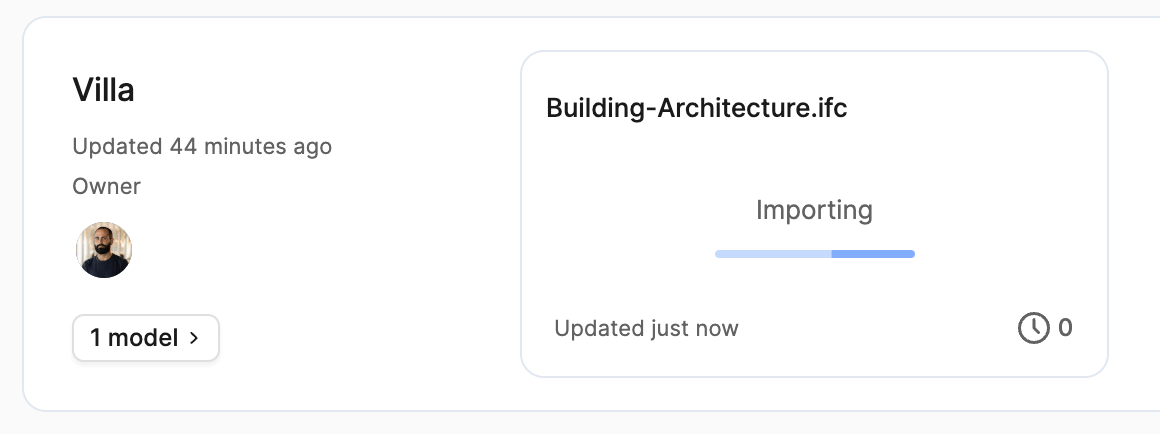
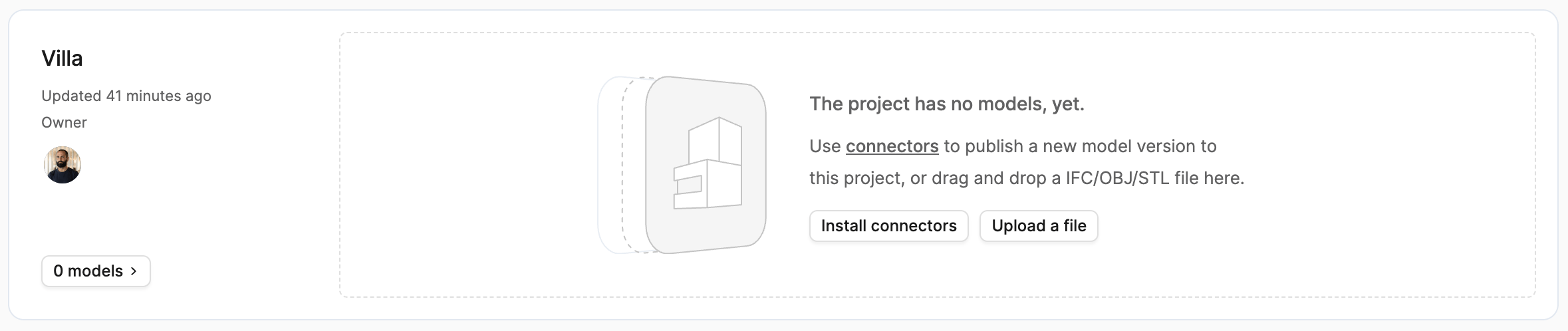 Drag and drop your file into the project. Speckle creates a new model with the file name.
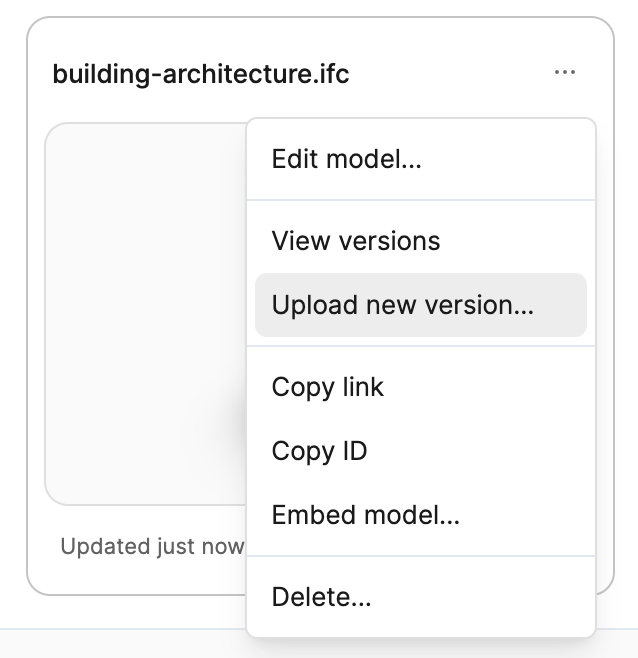
 To upload updated versions, select the dropdown menu on the model.
 ## Supported file formats
Speckle supports the following file formats:
| Format | Extension | Status |
| ----------------------------- | --------- | ------ |
| IFC | .ifc | ✔︎ |
| Rhinoceros 3D | .3dm | ✔︎ |
| SketchUp | .skp | ✔︎ |
| AutoCAD | .dwg | ✔︎ |
| Drawing Exchange Format | .dxf | ✔︎ |
| MicroStation | .dgn | ✔︎ |
| 3D Studio | .3ds | ✔︎ |
| SolidWorks Part | .sldprt | ✔︎ |
| STEP | .stp | ✔︎ |
| STEP | .step | ✔︎ |
| Point Cloud | .e57 | ✔︎ |
| 3D Manufacturing Format | .3mf | ✔︎ |
| Additive Manufacturing Format | .amf | ✔︎ |
| Filmbox | .fbx | ✔︎ |
| IGES | .igs | ✔︎ |
| IGES | .iges | ✔︎ |
| Wavefront | .obj | ✔︎ |
| Polygon File Format | .ply | ✔︎ |
| DirectX | .x | ✔︎ |
| Revit | .rvt | ✔︎ |
### Unit Conversion
For several file formats, the Unit system of the source file will be automatically detected and preserved when sending through Speckle.
* IFC ✔︎
* 3dm ✔︎
* DGN ✔︎
* SKP ✔︎
* STP ✔︎
* FBX ✔︎
Other formats have a different behaviour:
| **Format** | **Behaviour** |
| ---------- | ---------------------------- |
| DWG | Geometry is scaled to meters |
| 3DS | Assuming file is in cm |
| OBJ | Assuming file is in mm |
## File format details
### IFC
IFC files are converted to Speckle format with support for attributes, property sets, and quantities.
**Supported versions:** IFC2x3, IFC4
**Features**
* Element and element type attributes
* Property sets
* Element quantities
* **IFCSpaces** are published as volumetric geometry
**Known limitations**
* IFC2x2\_FINAL and Release Candidate versions aren't supported
* Alternative formats such as XML, ZIP, and databases aren't supported
* 2D types like IfcAnnotation aren't currently supported
### Rhino (3DM)
Rhino files maintain geometry and layer structure when uploaded.
For better results with 3dm files, use the [Rhino connector](/connectors/rhino) when possible.
**Known limitations**
* Rhino 9 files aren't supported
* Dynamic text isn't supported
### SketchUp (SKP)
SketchUp models are converted with geometry and basic organization preserved.
For better results with SketchUp files, use the [SketchUp connector](/connectors/sketchup) when possible.
**Known limitations**
* Attributes aren't imported
* Dynamic components may not transfer correctly
### DWG and DXF
Upload AutoCAD drawing files directly. Results may vary depending on file complexity.
For better results with DWG files, use the [AutoCAD connector](/connectors/autocad) when possible.
**Known limitations**
* Large files may take longer to process
* Dynamic text isn't supported
### Wavefront (OBJ)
OBJ files are converted with geometry preserved.
**Known limitations**
* Materials aren't supported
## Frequently asked questions
Yes, file downloads are available. To download a file
1. Select the dropdown menu (**...**) on the model.
2. Select **View uploads**.
3. Select **Download** next to the version you want.
The limits on file uploads are currently **1000MB** for all plans and all formats.
We use a queue system to process files, so it can take awhile to generate the Speckle model after you upload your file. If you do not see your model after a long time, this may be caused by faulty items inside your file. Please report your problem in our [Community Forum](https://speckle.community/c/help) and include the following information:
* Your file type and version
* Your failed file
We're always looking to expand format support. Let us know which formats you'd like to see in future releases.
## Supported file formats
Speckle supports the following file formats:
| Format | Extension | Status |
| ----------------------------- | --------- | ------ |
| IFC | .ifc | ✔︎ |
| Rhinoceros 3D | .3dm | ✔︎ |
| SketchUp | .skp | ✔︎ |
| AutoCAD | .dwg | ✔︎ |
| Drawing Exchange Format | .dxf | ✔︎ |
| MicroStation | .dgn | ✔︎ |
| 3D Studio | .3ds | ✔︎ |
| SolidWorks Part | .sldprt | ✔︎ |
| STEP | .stp | ✔︎ |
| STEP | .step | ✔︎ |
| Point Cloud | .e57 | ✔︎ |
| 3D Manufacturing Format | .3mf | ✔︎ |
| Additive Manufacturing Format | .amf | ✔︎ |
| Filmbox | .fbx | ✔︎ |
| IGES | .igs | ✔︎ |
| IGES | .iges | ✔︎ |
| Wavefront | .obj | ✔︎ |
| Polygon File Format | .ply | ✔︎ |
| DirectX | .x | ✔︎ |
| Revit | .rvt | ✔︎ |
### Unit Conversion
For several file formats, the Unit system of the source file will be automatically detected and preserved when sending through Speckle.
* IFC ✔︎
* 3dm ✔︎
* DGN ✔︎
* SKP ✔︎
* STP ✔︎
* FBX ✔︎
Other formats have a different behaviour:
| **Format** | **Behaviour** |
| ---------- | ---------------------------- |
| DWG | Geometry is scaled to meters |
| 3DS | Assuming file is in cm |
| OBJ | Assuming file is in mm |
## File format details
### IFC
IFC files are converted to Speckle format with support for attributes, property sets, and quantities.
**Supported versions:** IFC2x3, IFC4
**Features**
* Element and element type attributes
* Property sets
* Element quantities
* **IFCSpaces** are published as volumetric geometry
**Known limitations**
* IFC2x2\_FINAL and Release Candidate versions aren't supported
* Alternative formats such as XML, ZIP, and databases aren't supported
* 2D types like IfcAnnotation aren't currently supported
### Rhino (3DM)
Rhino files maintain geometry and layer structure when uploaded.
For better results with 3dm files, use the [Rhino connector](/connectors/rhino) when possible.
**Known limitations**
* Rhino 9 files aren't supported
* Dynamic text isn't supported
### SketchUp (SKP)
SketchUp models are converted with geometry and basic organization preserved.
For better results with SketchUp files, use the [SketchUp connector](/connectors/sketchup) when possible.
**Known limitations**
* Attributes aren't imported
* Dynamic components may not transfer correctly
### DWG and DXF
Upload AutoCAD drawing files directly. Results may vary depending on file complexity.
For better results with DWG files, use the [AutoCAD connector](/connectors/autocad) when possible.
**Known limitations**
* Large files may take longer to process
* Dynamic text isn't supported
### Wavefront (OBJ)
OBJ files are converted with geometry preserved.
**Known limitations**
* Materials aren't supported
## Frequently asked questions
Yes, file downloads are available. To download a file
1. Select the dropdown menu (**...**) on the model.
2. Select **View uploads**.
3. Select **Download** next to the version you want.
The limits on file uploads are currently **1000MB** for all plans and all formats.
We use a queue system to process files, so it can take awhile to generate the Speckle model after you upload your file. If you do not see your model after a long time, this may be caused by faulty items inside your file. Please report your problem in our [Community Forum](https://speckle.community/c/help) and include the following information:
* Your file type and version
* Your failed file
We're always looking to expand format support. Let us know which formats you'd like to see in future releases.