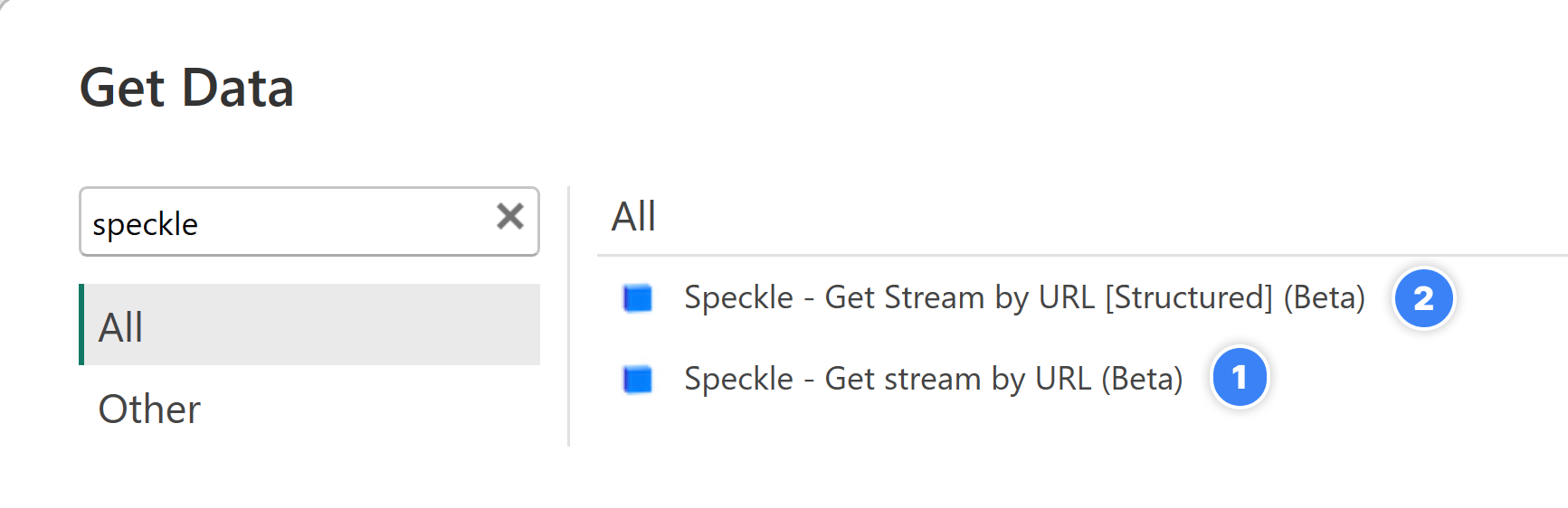
 1. **`Speckle - Get Model by URL (beta)`** (Recommended option for beginners)
2. **`Speckle - Get Model by URL [Structured] (beta)`** (experimental).
### Speckle - Get Model by URL (beta)
This is recommended if you are just starting with the Speckle Power BI connector.
Using it is simple: paste **Model/Version URL** and click **OK**.
1. **`Speckle - Get Model by URL (beta)`** (Recommended option for beginners)
2. **`Speckle - Get Model by URL [Structured] (beta)`** (experimental).
### Speckle - Get Model by URL (beta)
This is recommended if you are just starting with the Speckle Power BI connector.
Using it is simple: paste **Model/Version URL** and click **OK**.
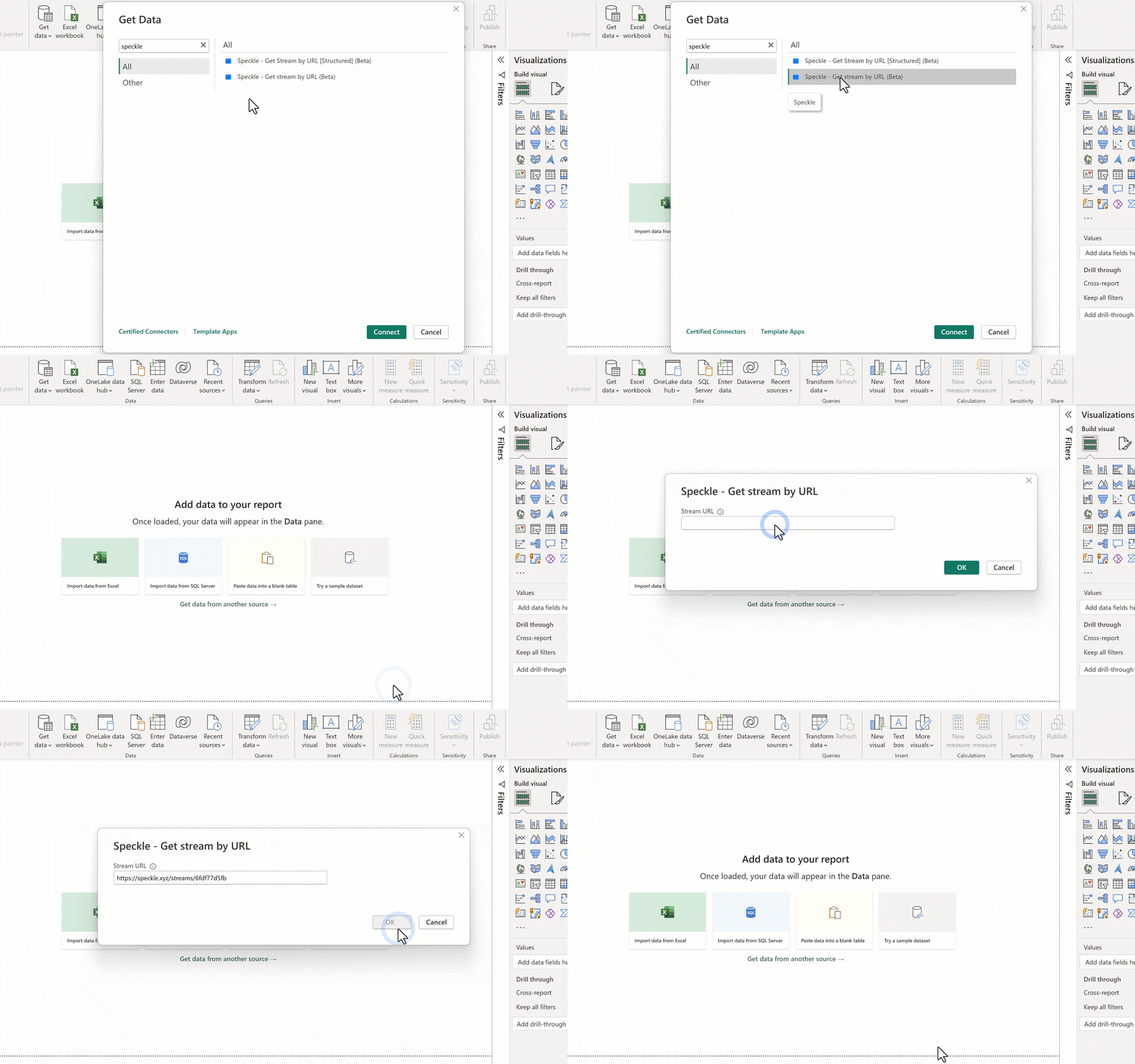 The result of that query will be a table with the following columns:
 1. **Model URL**: This is the URL of your model.
2. **URL Type**: Type or category of the input URL. Its value can be model, version, or object.
3. **Version Object ID🆕:** The ID of the root object each individual object came from. For model/versions, it will be the referenced version object. For object URLs, it will match the object id on the URL.
4. **Object ID**: The ID of each speckle object in the table. This was extracted from the `data` records.
5. **speckle\_type:** Speckle Type of each object.
6. **data**: A column of records containing the data belonging to each speckle object.
Other columns may be present and can be user-generated but are irrelevant to this section.
1. **Model URL**: This is the URL of your model.
2. **URL Type**: Type or category of the input URL. Its value can be model, version, or object.
3. **Version Object ID🆕:** The ID of the root object each individual object came from. For model/versions, it will be the referenced version object. For object URLs, it will match the object id on the URL.
4. **Object ID**: The ID of each speckle object in the table. This was extracted from the `data` records.
5. **speckle\_type:** Speckle Type of each object.
6. **data**: A column of records containing the data belonging to each speckle object.
Other columns may be present and can be user-generated but are irrelevant to this section.
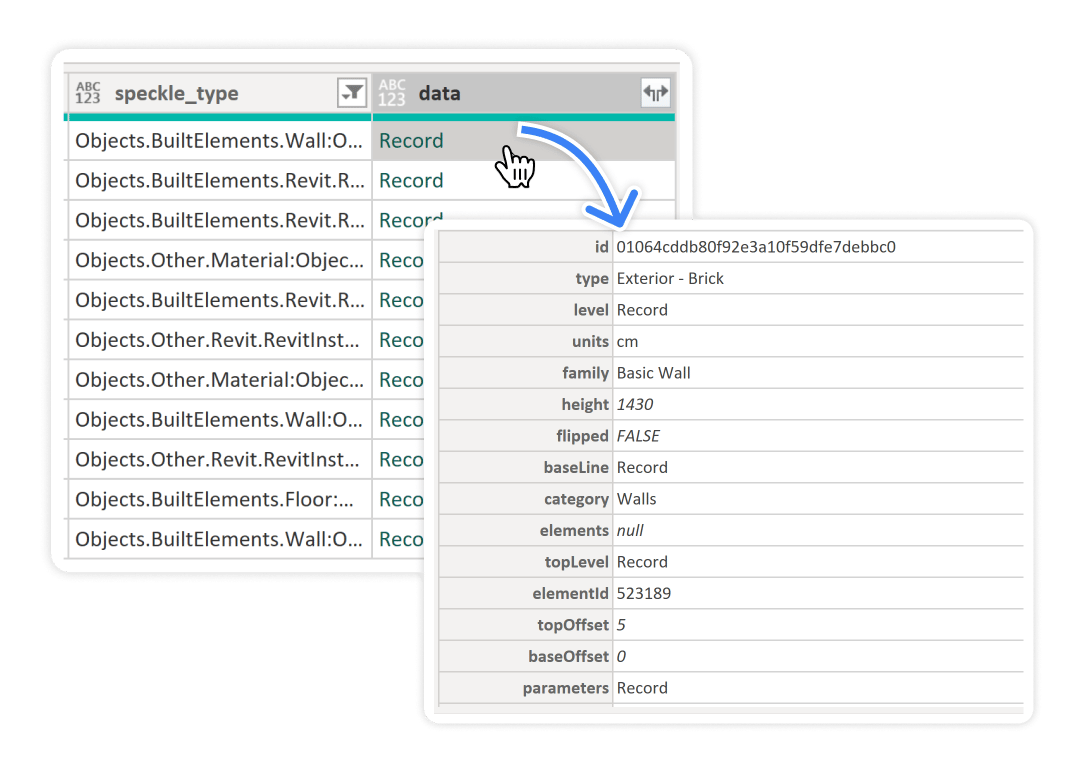 In the case of Speckle, where objects are essentially JSON objects with key-value pairs, these objects are converted into Record objects in Power BI when received. This conversion enables the representation of the complex data structures from Speckle as Records within Power BI.
### Speckle - Get Model by URL \[Structured] (beta)
In the case of Speckle, where objects are essentially JSON objects with key-value pairs, these objects are converted into Record objects in Power BI when received. This conversion enables the representation of the complex data structures from Speckle as Records within Power BI.
### Speckle - Get Model by URL \[Structured] (beta)